Get Pocket running on a laptop
Pocket requires Python 3.11 or newer, Make, and a UTF-8 terminal on macOS or Linux. Use your existing Python environment.
1. Download Pocket
Choose either the ZIP download or Git. Both contain the pocket directory used in the next step.
Download a ZIP
Download the source ZIP and save it in your Downloads folder. Extract it with your file manager. The extracted directory is named n810-revival-main.
Open a terminal and enter Pocket's directory:
If you extracted the archive elsewhere, use that location in the cd command. You should now be in the directory containing Makefile, shell, and tests.
Clone with Git
If you use Git, run these commands from the directory where you keep source projects:
The repository contains the application source, platform work, tests, and documentation.
2. Run Pocket
From the pocket directory, run:
Make launches the normal Pocket desktop. Keep the source directory for future launches.
On the first run, Pocket creates its default session and opens Connections. The top bar lists the open window, and its bright border shows that it has focus. Later launches restore the saved session.
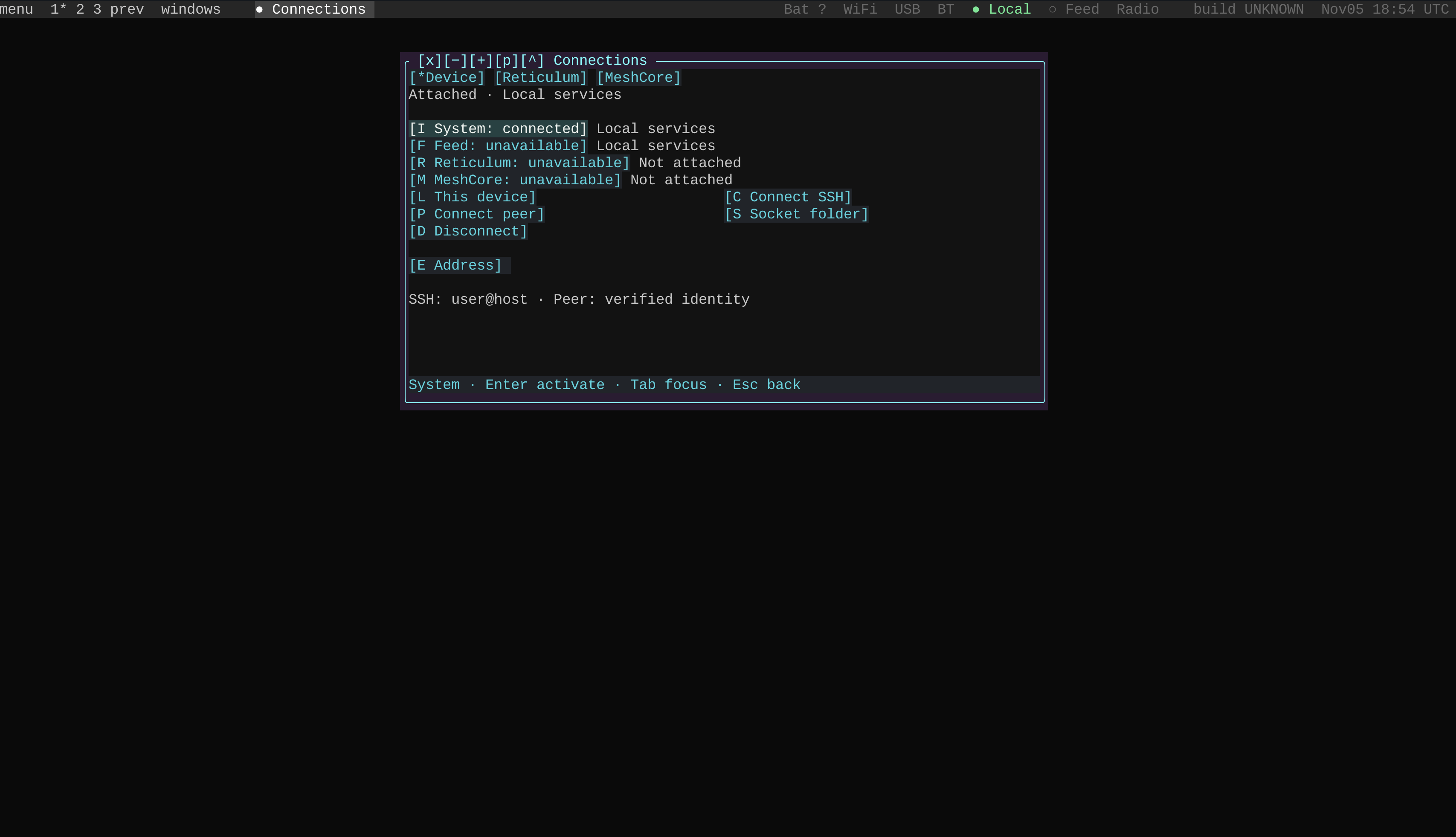
Actual terminal screenshot from 5 November 2026. Connections shows local system services and the availability of the feed, Reticulum, and MeshCore. Window placement and available services depend on your terminal size and local setup.
3. Open Help and Calendar
- Press Ctrl-], then comma, to open the application menu.
- Type Help and press Enter. Help opens in Reading with instructions for the previously focused application.
- Press Esc twice to reach the application list. Press Home to select Desktop, then Enter to open its topics.
- Use Up/Down to select a topic; its text appears in the preview. Press Tab to focus Reading, where Up/Down scrolls the text. Tab switches back to Topics.
- With Help still focused, press Ctrl-F, type pairing, and press Tab to focus the search results. Use Up/Down to select a result and Enter to open it. Esc cancels an unfinished search.
- Press Ctrl-], then comma, again. Type Calendar and press Enter.
- Press F6 to switch between open windows. Shift-F6 moves in the reverse direction.
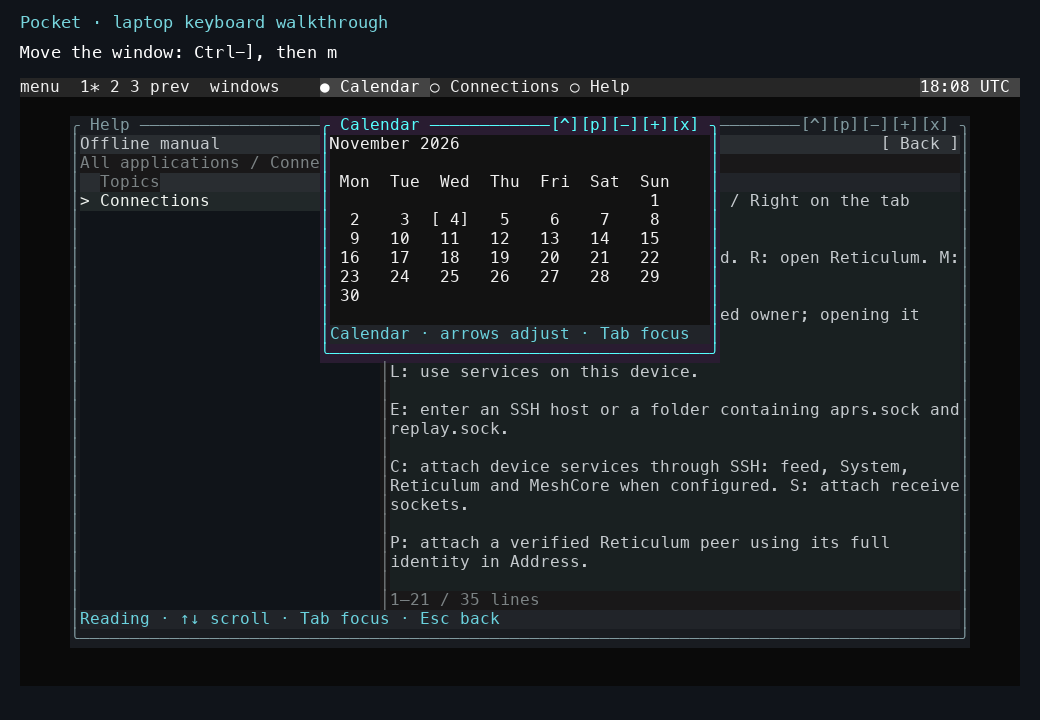
An example after opening and arranging Calendar and Help, captured on 4 November 2026. Calendar has focus.
Ctrl-] switches between application input and window-manager commands. The window-controls tutorial covers moving, resizing, and maximizing windows. The overview tutorial introduces desktop previews and animated backgrounds.
Tab changes the focused pane directly. Enter opens a selected application, topic, or search result.
4. Quit and return
Press Ctrl-], followed by q, to quit. To return, open a terminal in the same pocket directory and run:
Pocket restores your saved settings and application state. These live in ~/.local/state/pocket/default, or $XDG_STATE_HOME/pocket/default if you set XDG_STATE_HOME.
If startup fails
| Symptom | What to do |
|---|---|
Make reports that pocket does not exist |
Enter the extracted or cloned pocket directory and use make. |
| Make reports no makefile found | Check your directory with pwd and ls. The Pocket directory contains Makefile, shell, and tests. |
| You have several Python versions installed | Select the one to use, for example make PYTHON=python3.13. |
Continue from here
The installation reference covers optional native components and service dependencies. Use the SSH guide to connect an existing tablet installation, or the APRS demo guide to build the offline maps and explore the fictional packet examples. The kernel build guide covers building the N810 kernel.