Keyboard navigation
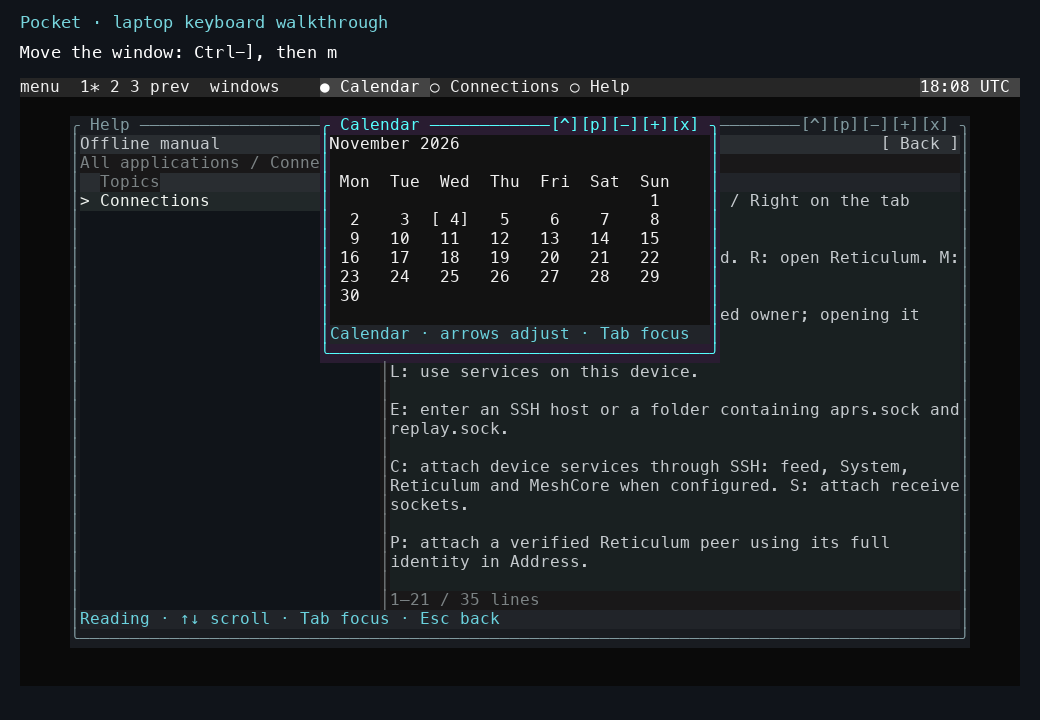
The 4 November laptop walkthrough shows Calendar with the active border. Ctrl-], then m enters movement; arrows move it and Enter accepts the position. Watch the complete sequence.
Within a window
Tab moves focus forward. Shift-Tab moves focus backward. Focus moves between the tab strip, panes, inputs and actions; moving focus never connects, sends, grants access or starts a job.
When the tab strip has focus, use Left / Right to select a tab. Changing tabs does not change a selected service owner. [ / ] switches tabs directly when you are not typing into an input or search field.
In a list, use Up / Down to select an item and Enter to open it. In a control, arrows adjust its value. On an action, Enter activates it. In a text input, type normally; the app's confirmation controls determine when edits are applied. A modal form keeps input within that form.
The focused region is highlighted. The bottom line describes its keys.
Between windows
F6 / Shift-F6 selects the next or previous window. Clicking a window also selects it. The window-manager escape retains its existing commands.
Terminals and games
Terminals and interactive graphics canvases retain their application keys, including Tab where the application uses it. F6 still selects another window.
Application coverage
The shell routes registered native apps and Settings/Calendar through shared navigation. App-owned text forms keep their input until accepted or cancelled; map filters and split resizing retain their own controls while active.
| Apps | Focus and input behavior |
|---|---|
| Connections, System, Reticulum | Tabs, content and available actions; changing focus does not attach, grant or transmit |
| Messages: APRS, Reticulum, MeshCore | The active protocol's conversation list, transcript and actions; drafts keep literal shortcut characters |
| Radio, Radio Manager, Radio Feed | Lists, details and actions; split resizing owns arrows until accepted or cancelled |
| Stations, Station Map, Last heard | List/detail/filter focus, captured map filters, explicit station-view controls |
| Services, Nets, Walk, Heard | Shared list search and pane focus; category tabs where present |
| Reader, Library, Workbench, CW | Lists, results, input fields and explicit job actions |
| Help | Topic search, reading pane and Back; Escape returns through topics to the app list and closes |
| Settings, Scenery, Font Preview, Audio Monitor, Render Debug, Calendar | Shared focus with app-specific adjustment and activation |
| Terminals and interactive canvases | Application-owned keys; F6 still changes windows |
Regression tests cover these forms and alternate modes. Hardware acceptance of radio operations, touchscreen gestures under load and long-running sessions is tracked separately in the project status.
Panel status menus
Tap a battery, Wi-Fi, USB, Bluetooth or radio status item to open its compact tray menu. Right-click opens the same menu. On touch, the menu appears on press and remains open after release; holding does not launch the full application. Escape or a click outside dismisses it. Arrow keys and Enter select actions.
Bluetooth offers only commands advertised by the connected owner: controller power, reception start/stop and radio disconnect. Radio offers read-progress checks and snapshot refresh. Battery and network menus show cached status and provide refresh and links to the relevant settings or connection manager. Missing or stale observations remain labeled; these menus do not add collectors or change hardware merely by opening. Full applications are explicit menu entries.
Panel placement
Settings → Layout → Panel dock chooses the selected panel's edge. The menu/status panel keeps that edge across terminal resizing and launcher presentation changes. Automatic launcher layout chooses a free edge; it does not move the menu. Choosing an edge while presentation is Auto makes that presentation explicit, so subsequent resizing cannot undo the choice. Panel locking controls editing by pointer/shortcut; it does not disable Settings.
Held text-window move/resize outlines use one bounded native UI batch when the background is disabled. They do not repeatedly re-enter the renderer for 64 cells of a small border. Mutable image/terminal layers retain their bounded sampling. The optional pointer trace captures source timestamps, renderer selection and composition/output-stage timings in memory; it writes binary data at explicit checkpoints or shutdown, not during each drag update.